← Back to the Book of Records
1
Step 1

Build your prompt

Pick a speaker, pick a backdrop, write one line. We'll assemble the rest and put the finished prompt on your clipboard, ready to paste into the AI tool.

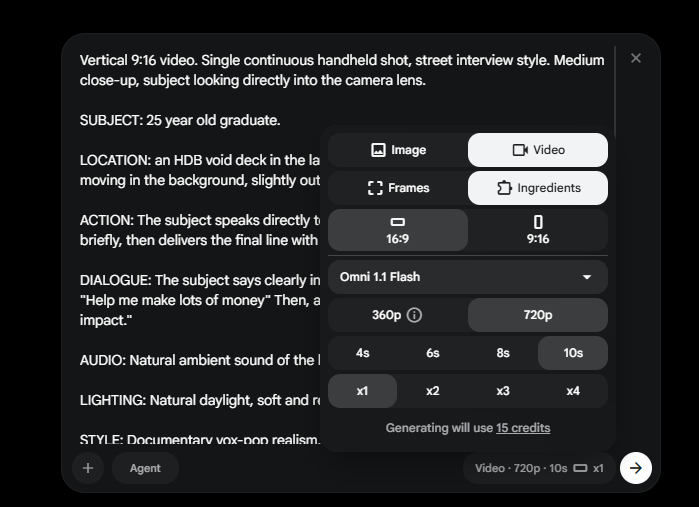
Turn Agent off, then your settings bar must read

Agent off Video 9:16 Omni 1.1 Flash 720p 10s x1
1

Pick your speaker

Who delivers your line to camera. Choose whoever fits your message, not whoever looks like you. Ten to pick from, or describe your own at the bottom.

Describe a person: age, what they wear, how they carry themselves. 0 / 80
2

Pick your backdrop

Where your clip is filmed. All four are places you'd recognise walking around Singapore.

3

Write your line

Finish this thought: the one thing you want AI to help you do. Twelve words maximum, or it won't fit in ten seconds.

Keep it concrete. Name the actual thing you want done. 0 / 12 words

Three that work
  • Help me build games that teach kids to code
  • Help me reply to customers in five different languages
  • Help me write a storybook for my grandchildren
4

Copy your prompt

This is the full instruction the AI tool needs. You don't have to understand it, just paste it whole.

Your finished prompt

Pick a speaker and a backdrop, then write your line. Your prompt will appear here.
Copied. Now paste it into the tool.
2
Step 2

Generate your video

Google Flow
Google Flow The AI tool we're using on the day. Sign in with the Google account already on your phone.
Open Google Flow
  1. Turn Agent off first. If the Agent button beside the prompt box is lit up, tap it once to switch it off. The video and settings selector only appears when Agent is off, and Agent rewrites your prompt instead of using it as written.
  2. Paste the prompt into the prompt box in the AI tool.
  3. Check your settings bar reads Video · 9:16 · 720p · 10s · x1. The x1 is the one people miss, and it costs four times as much if you get it wrong.
  4. Tap generate and wait. It takes a couple of minutes. Lock your phone if you like, it keeps working.
  5. Save the video to your phone.
The Google Flow settings panel with Video, 9:16, Omni 1.1 Flash, 720p, 10s and x1 selected
This is the panel you're looking for. Check all six before you generate: Video, 9:16, Omni 1.1 Flash, 720p, 10s, x1. The cost line should read 15 credits.
Advanced Put yourself in the video

Flow can use your own photo as the person on screen. Do this after your record clip is submitted, not instead of it.
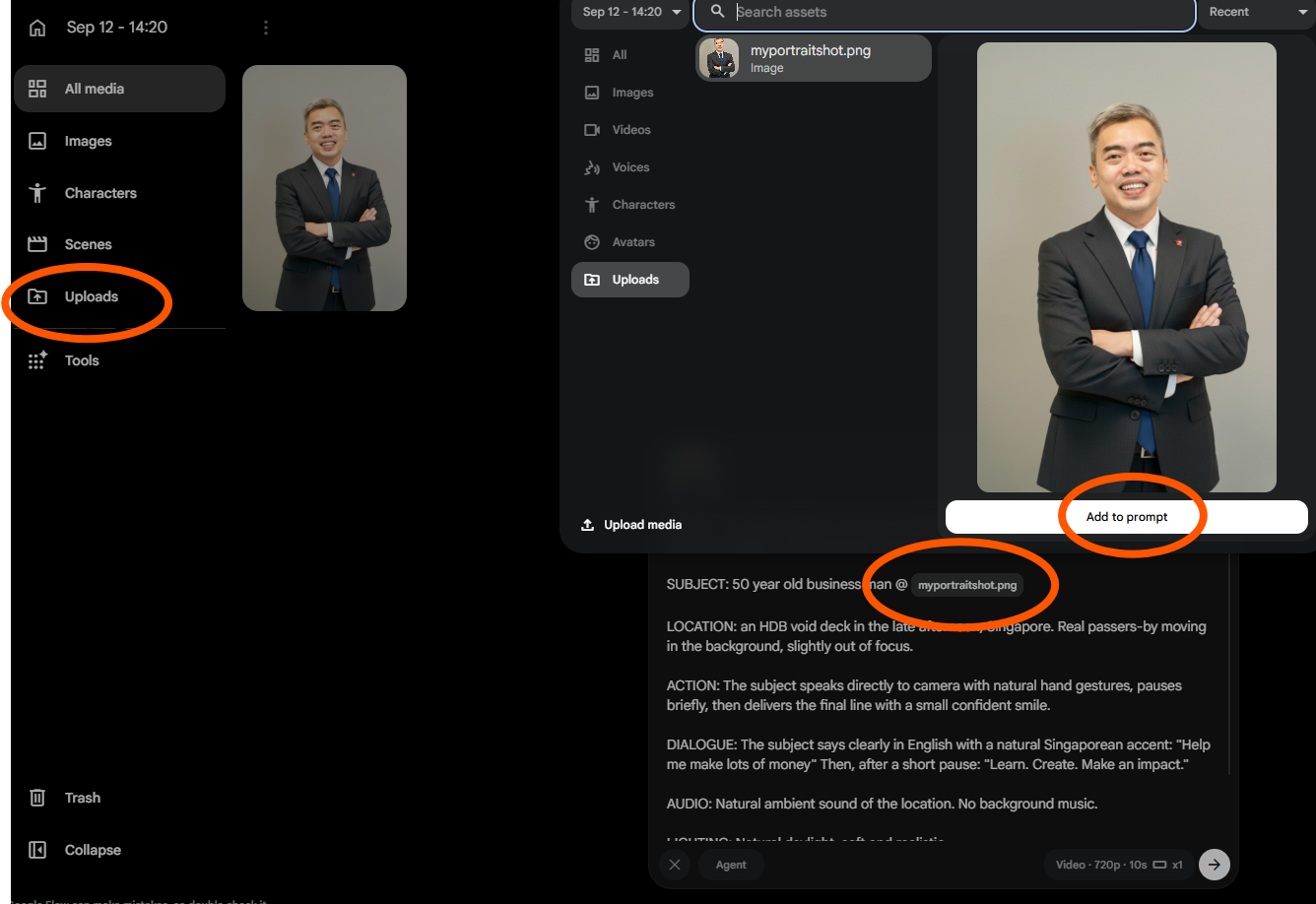
Google Flow with the Uploads panel open, a portrait selected, the Add to prompt button, and the resulting @myportraitshot.png tag inside the prompt
Uploads on the left, Add to prompt on the right, and the tag lands inside your prompt.
  1. Take a clean photo. Plain wall, good light, phone held upright, head to knees. Busy backgrounds confuse it.
  2. Open Uploads in the left sidebar, then Upload media and pick your photo.
  3. Tag it in the prompt. In your prompt, where you see SUBJECT:, type @ and pick your uploaded portrait to tag it in as the reference.
  4. Click Add to prompt. Once the tag is in, generate as normal and the person in your photo appears in the video.
3
Step 3

Upload your video

This is the part that counts. Your video only enters the record attempt once it lands here, so upload it before the hour is up. You'll get a submission number on screen and your e-Certificate of Participation by email.